Granting Access – GoDaddy / Domain Registrar
If we need to manage your domain settings, DNS records, or email configuration, we’ll need delegate access to your domain registrar account. This guide covers GoDaddy — if you use a different registrar, the process is similar.
GoDaddy Delegate Access
Step 1 – Log In to GoDaddy
Go to godaddy.com and sign in to your account.

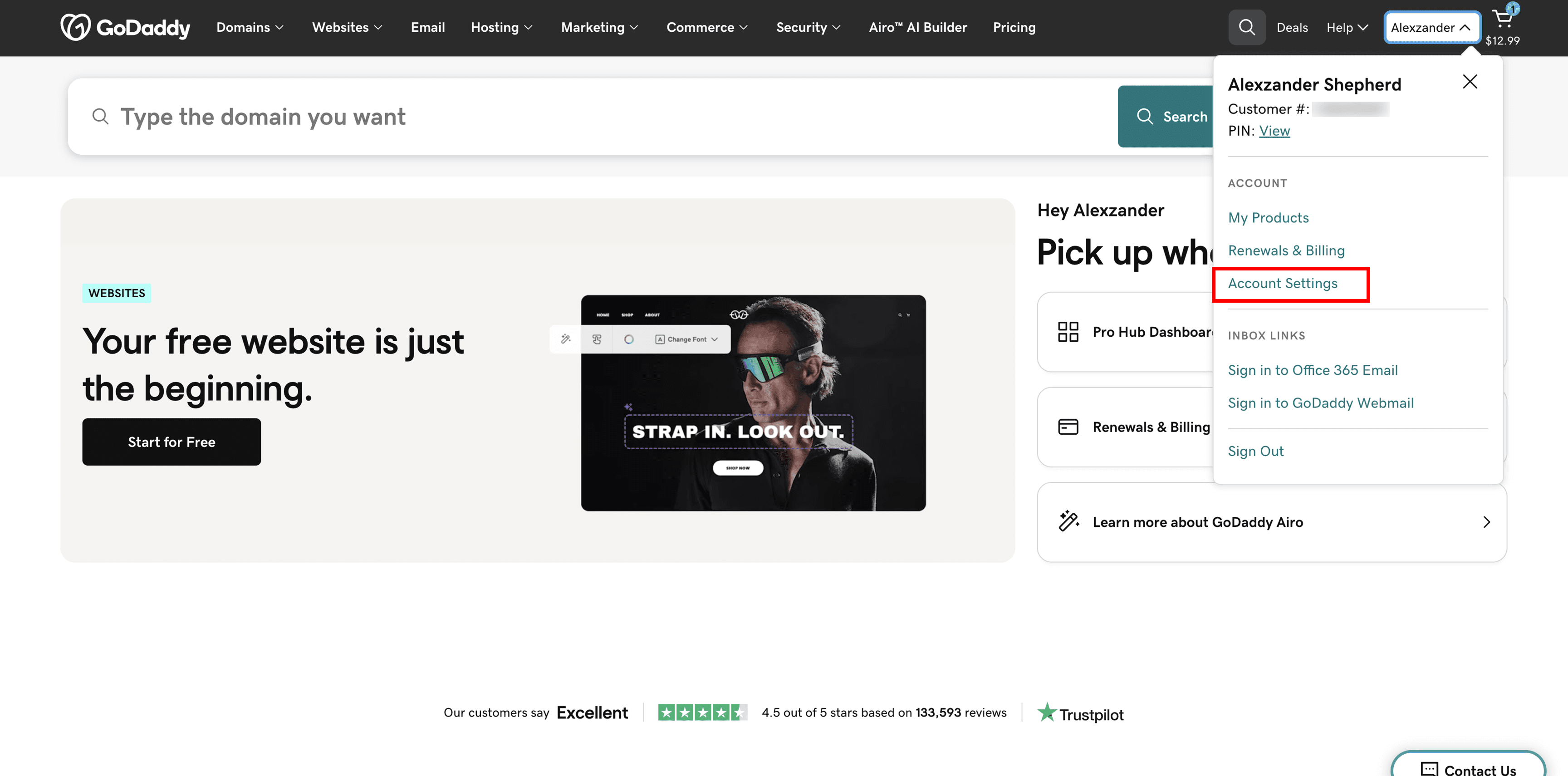
Step 2 – Go to Account Settings
Click your name or initials in the top-right corner, then click Account Settings.
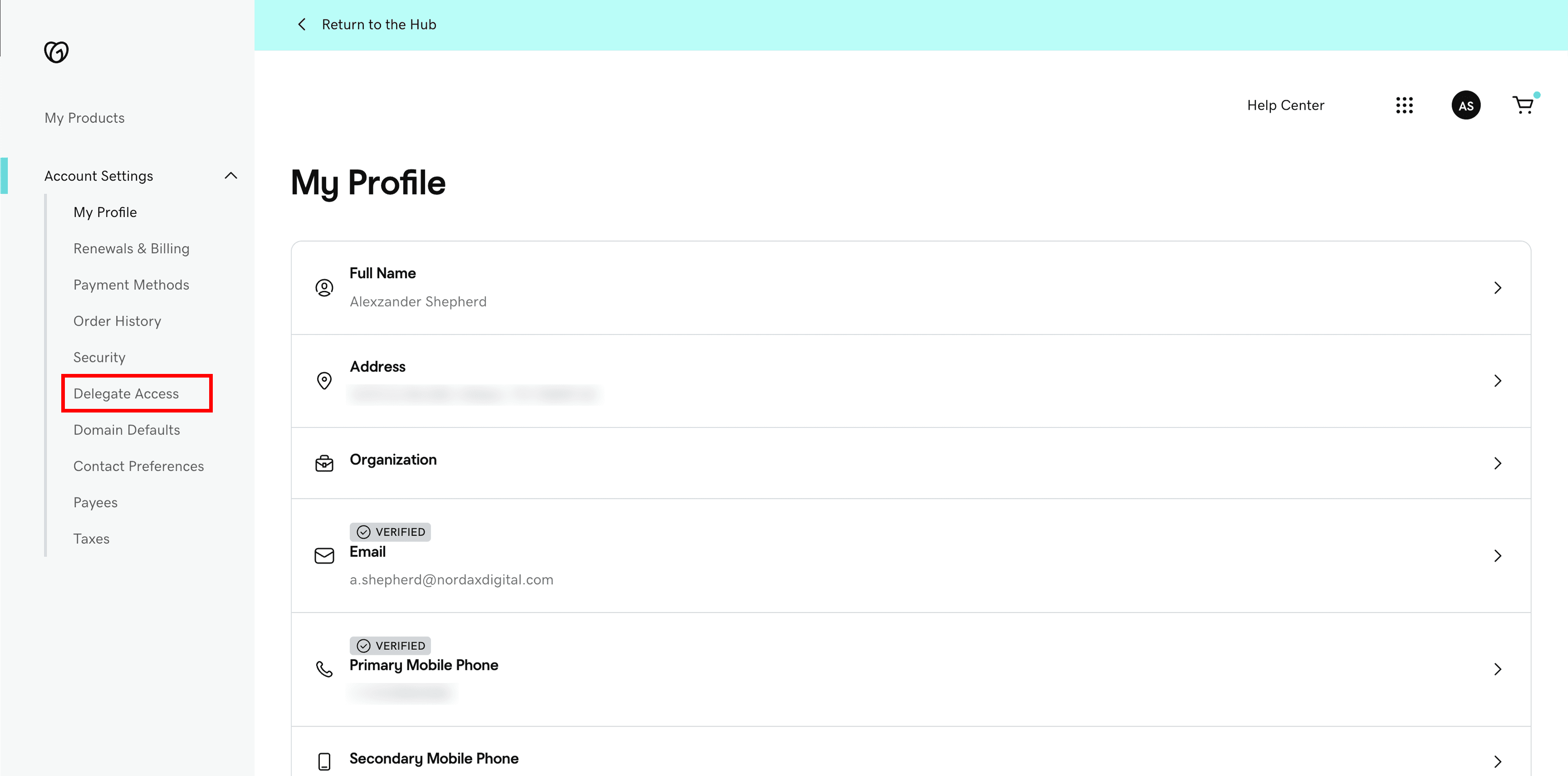
Step 3 – Find Delegate Access
Scroll down to the Delegate Access section. This is where you can invite someone to manage parts of your account without giving them your login credentials.
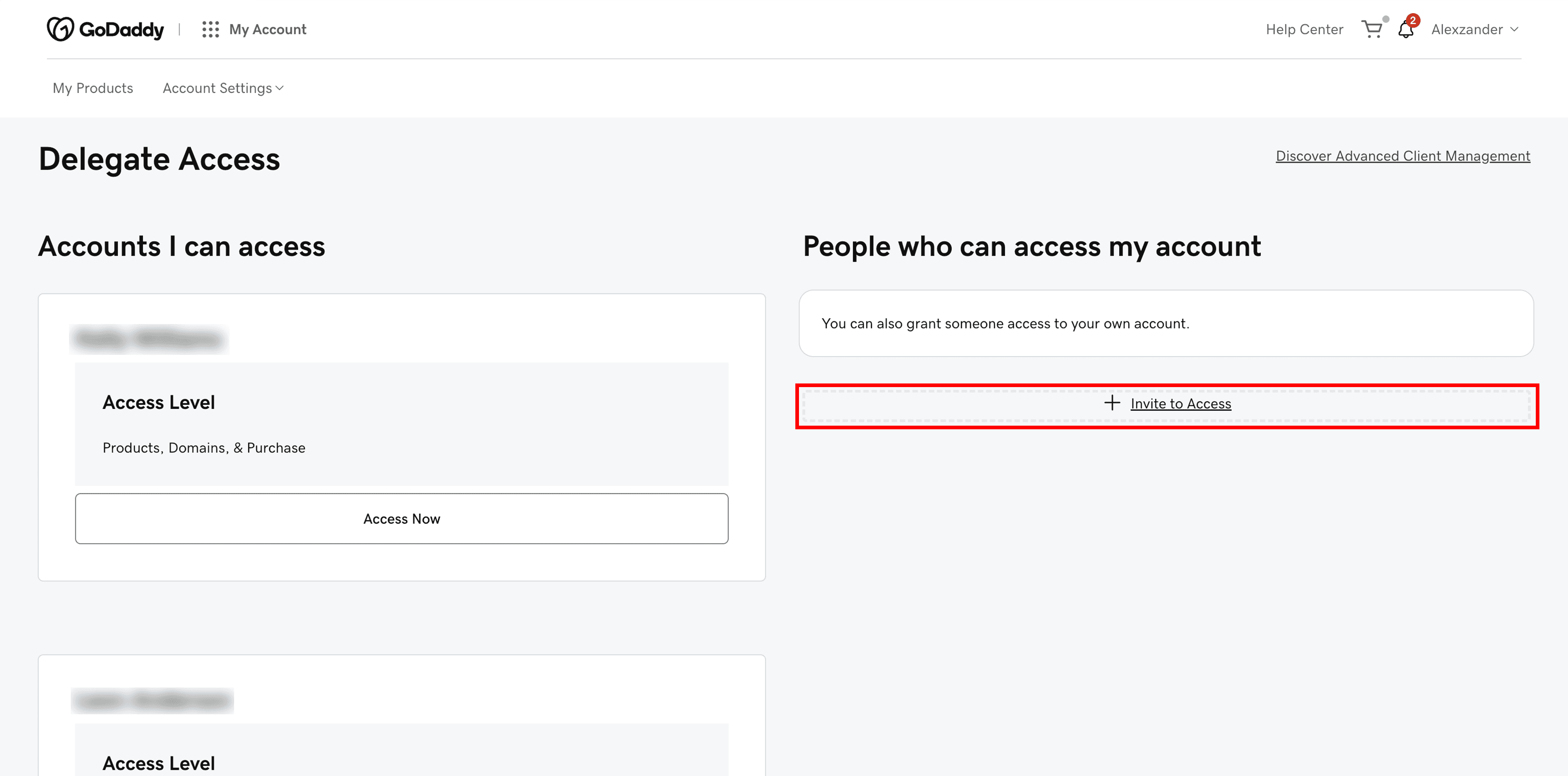
Step 4 – Invite a Delegate
Click Invite to Access and enter the email address we provide. Select the access level — we’ll let you know what’s needed. Once sent, we’ll accept the invitation on our end.
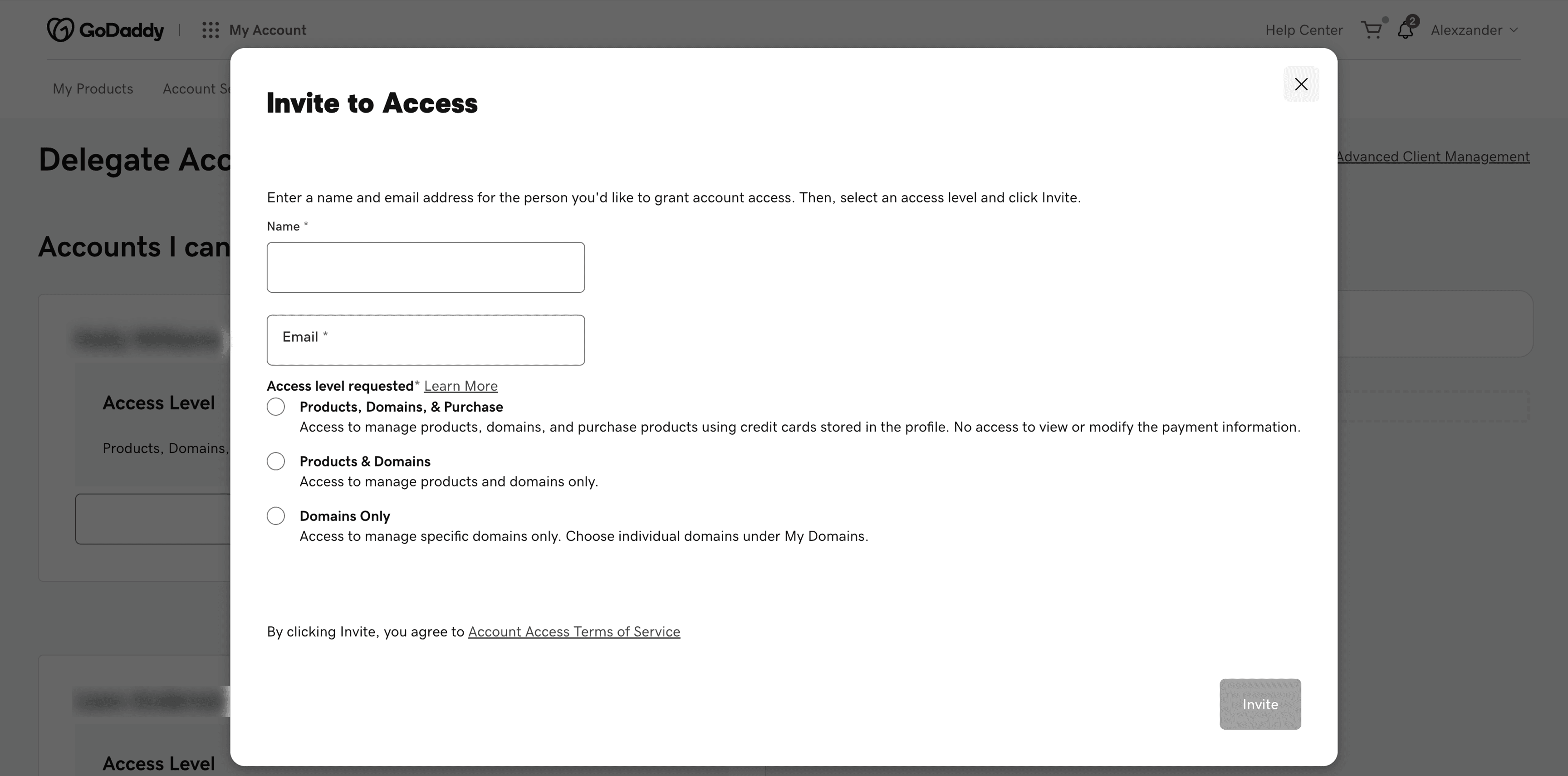
Delegate access lets us manage DNS or domains without seeing your billing info or full account. You stay in control and can revoke access at any time.
Steps 4 and 5 may look slightly different on your end than the screenshots above — the screens shown here are from an account that manages multiple client domains. The fields and options are the same.
Other Registrars
If your domain is registered with Namecheap, Cloudflare, Google Domains, or another provider, contact us and we’ll walk you through the specific steps for your platform.
Need Help?
Not sure where your domain is registered? Contact us — we can look it up for you.