Granting Access – YouTube Channel
If we’re helping with video uploads, channel branding, or analytics, we may ask you to grant us access to your YouTube channel. Here’s how to do it.
Step 1 – Go to YouTube Studio
Start by visiting studio.youtube.com and signing into your YouTube account.
Step 2 – Open Settings
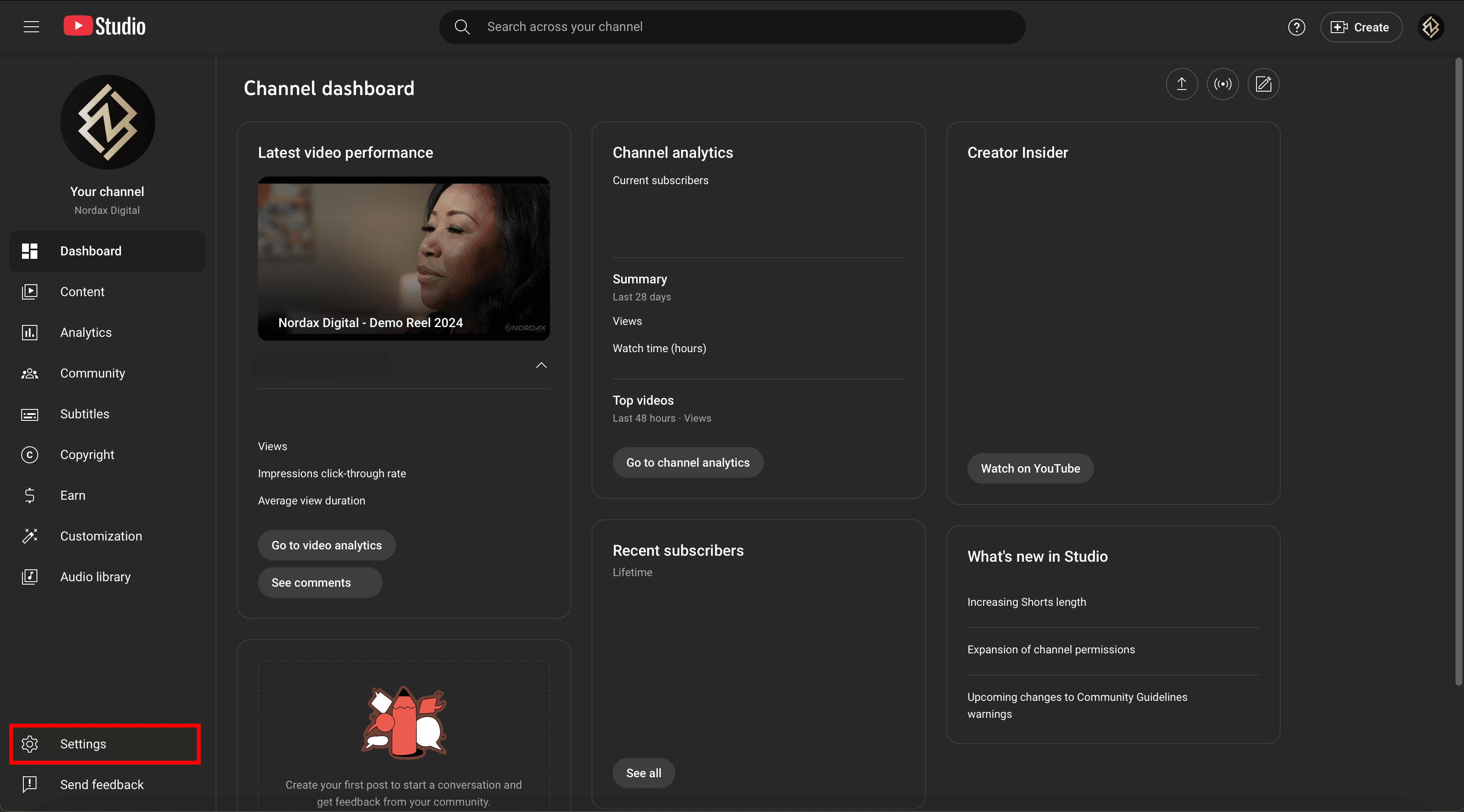
Click the gear icon in the bottom left corner to open the Settings menu.
Step 3 – Go to Permissions
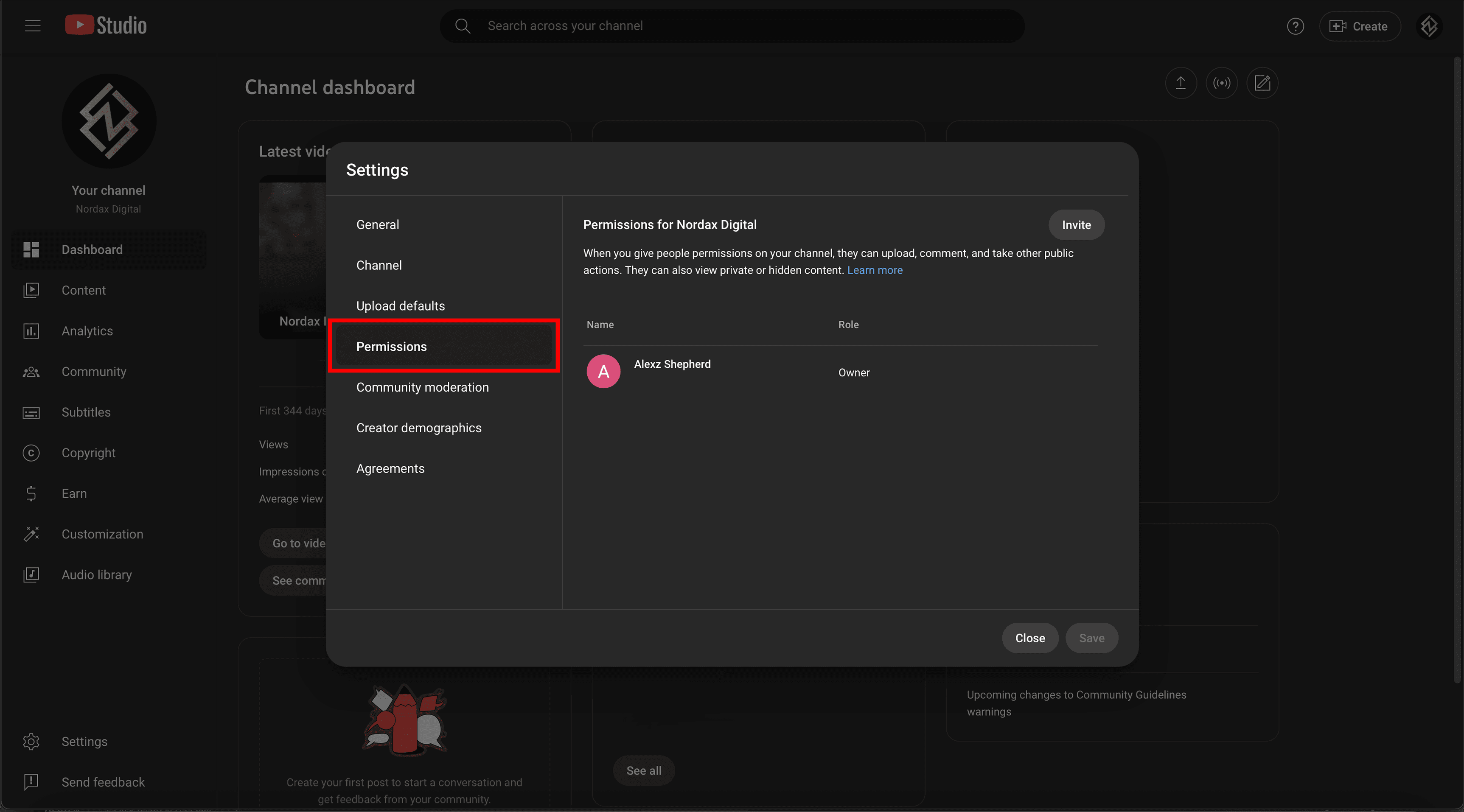
In the Settings popup, select Permissions from the left-hand column.
Step 4 – Click Invite
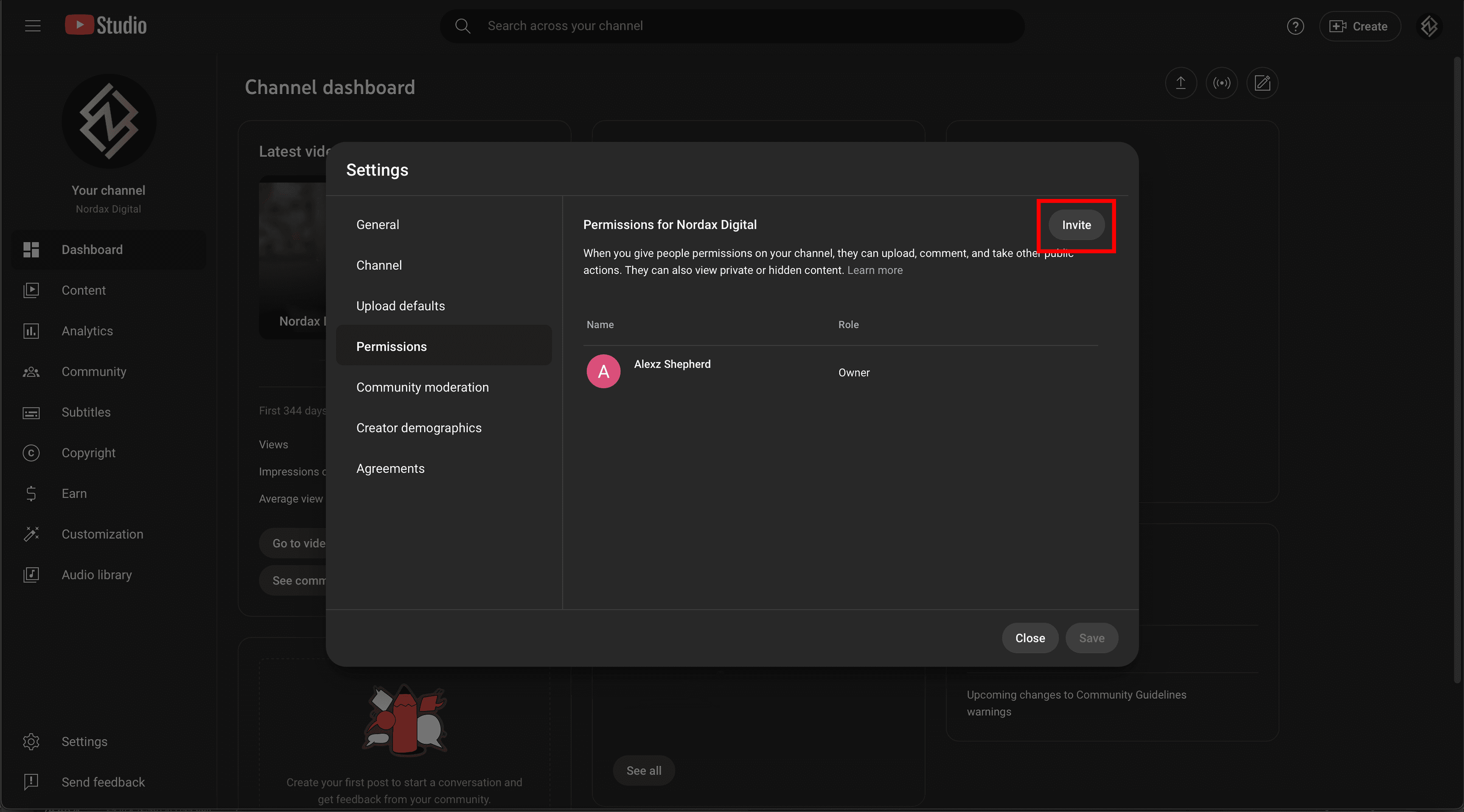
Click the Invite button in the top-right corner of the Permissions section.
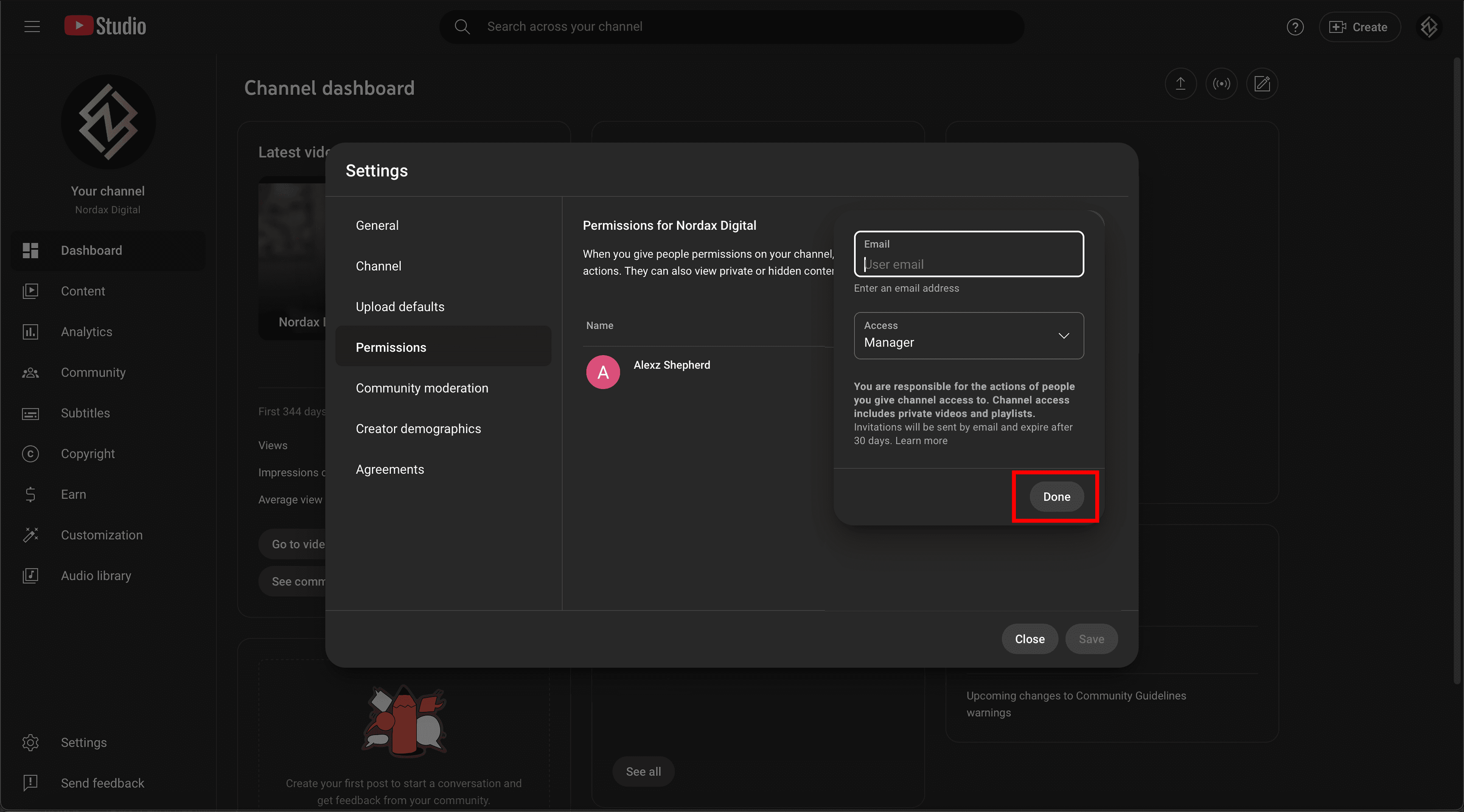
Step 5 – Add the Email
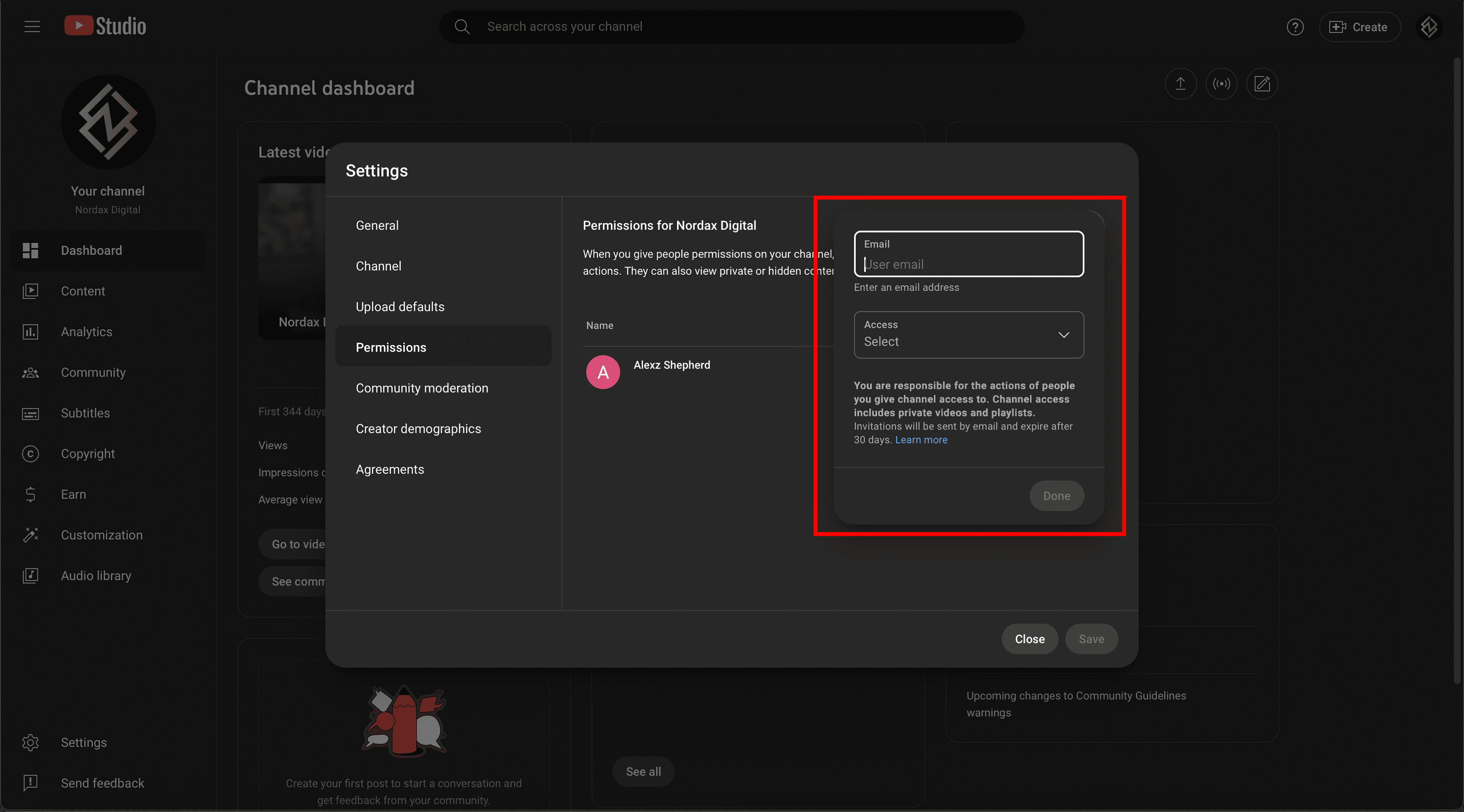
Enter the email address of the Google account you want to grant access to.
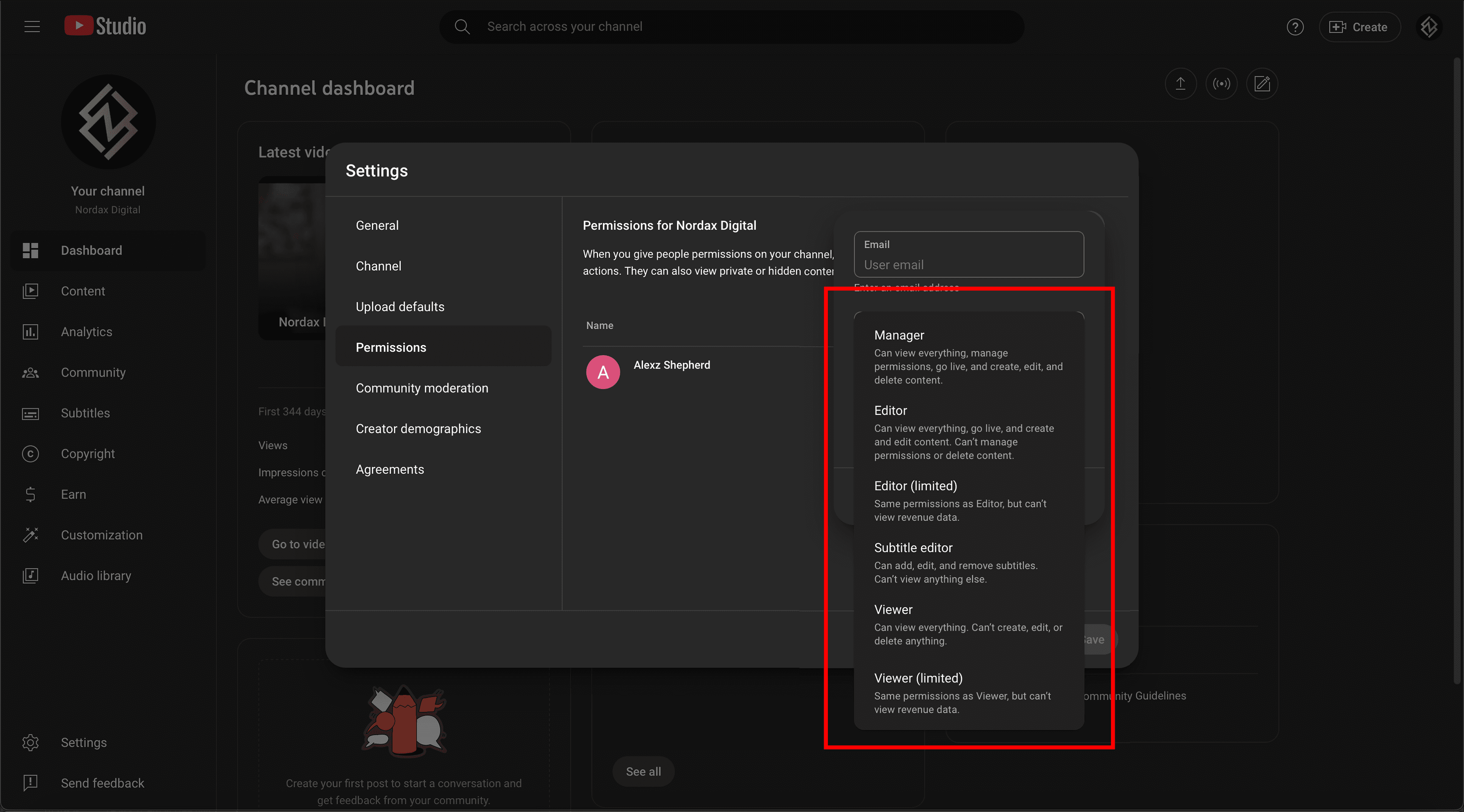
Step 6 – Choose a Role
Select the appropriate role. We typically recommend Manager access so we can upload content and manage settings as needed.
Step 7 – Send the Invite
Click Done to send the invitation. The invited user will receive an email notification and can accept access.
Not sure what role to assign? “Manager” is usually ideal for agencies. It allows us to upload, publish, and manage settings — but not delete your channel.