Granting Access – Wix
If we’re working on your Wix site, we’ll need collaborator access. Wix lets you invite team members with specific roles — here’s how.
Step 1 – Log In to Your Wix Dashboard
Go to wix.com and log in. You’ll land on your site dashboard.
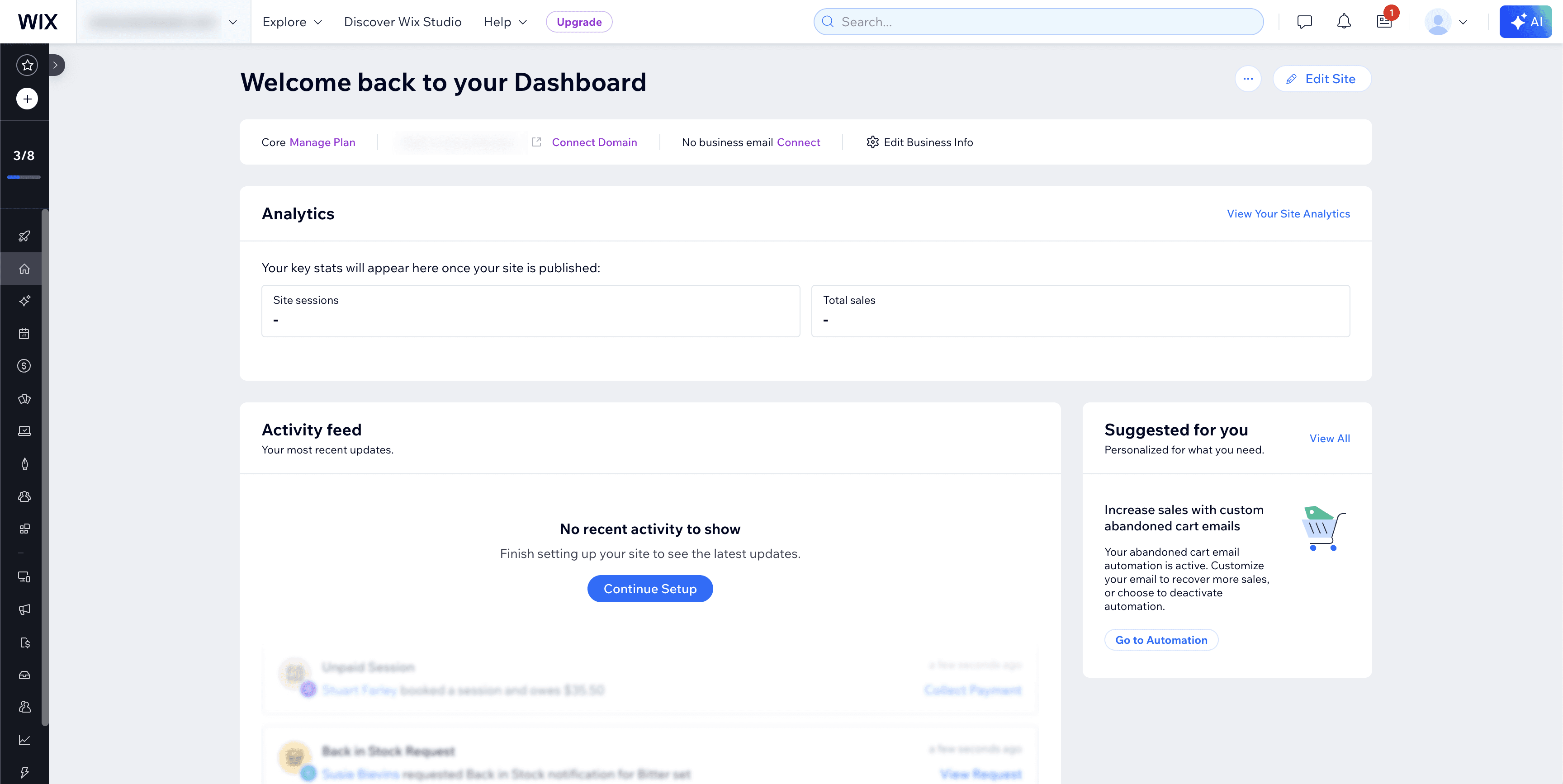
Step 2 – Open Settings
In the left sidebar, scroll down and click Settings.
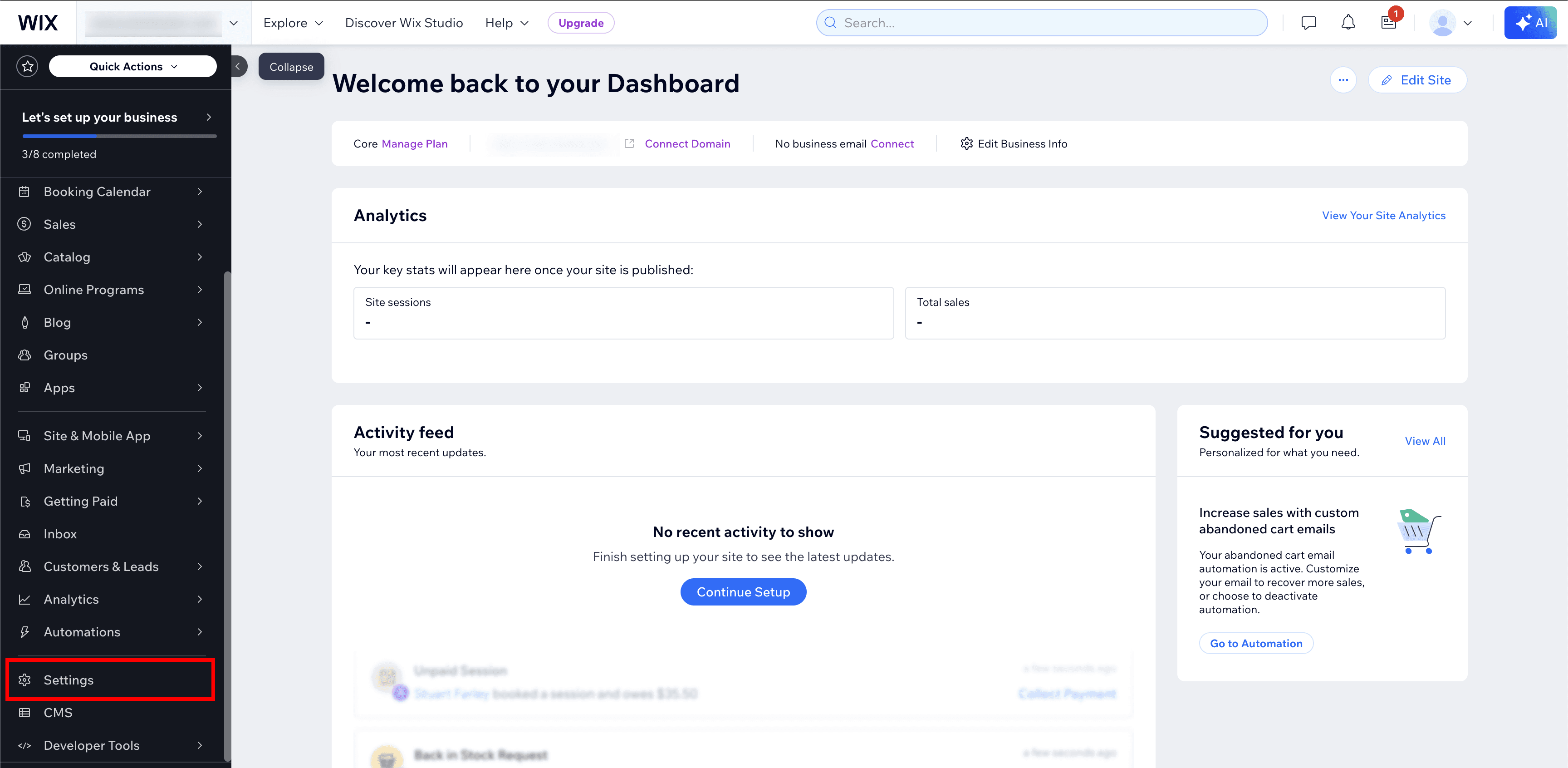
Step 3 – Click Roles & Permissions
Under the General section in Settings, click Roles & permissions — this is where you manage who has access to your site.
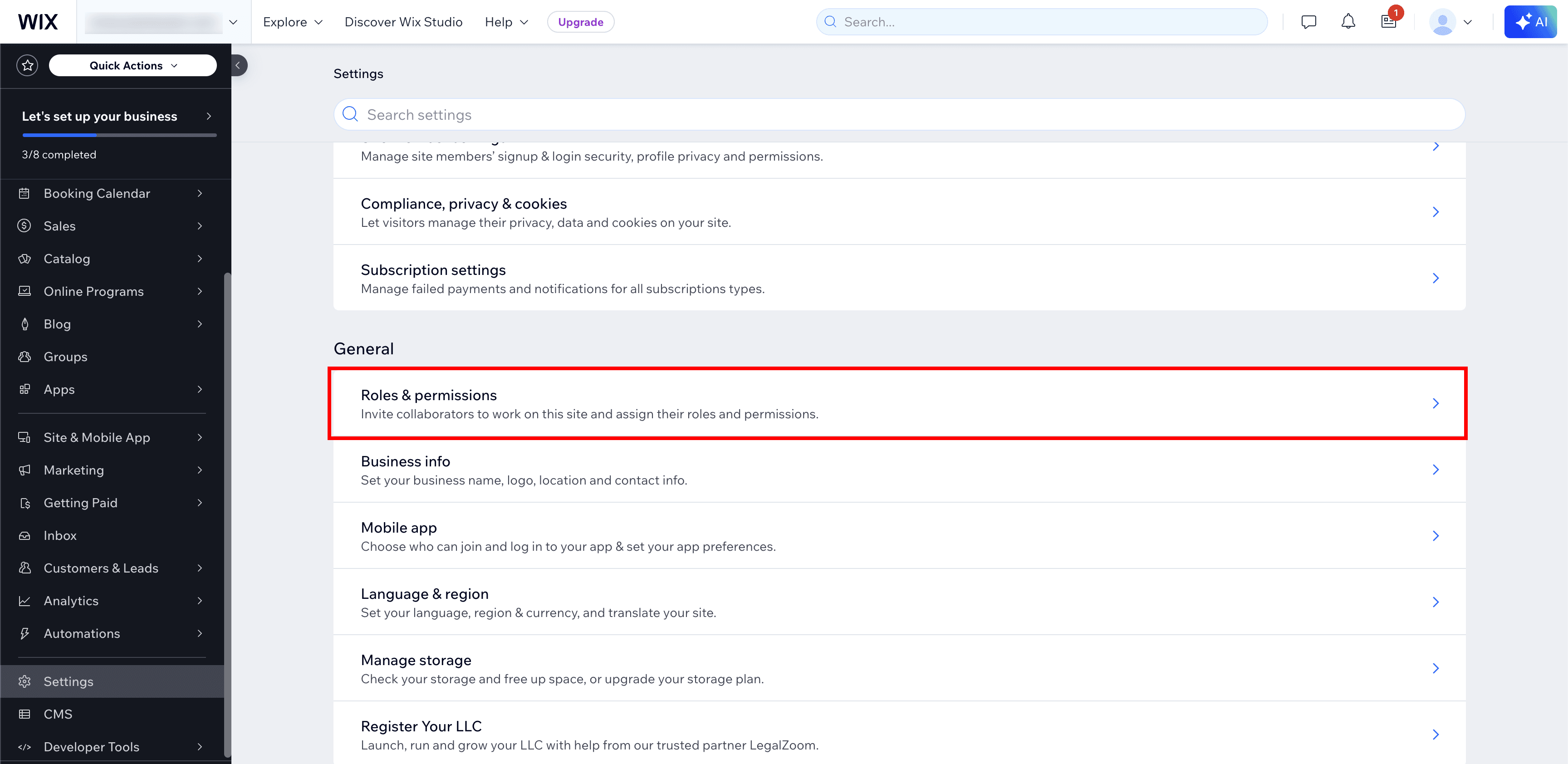
Step 4 – Click “Invite Collaborators”
On the Roles & Permissions page, click the + Invite Collaborators button in the top right.
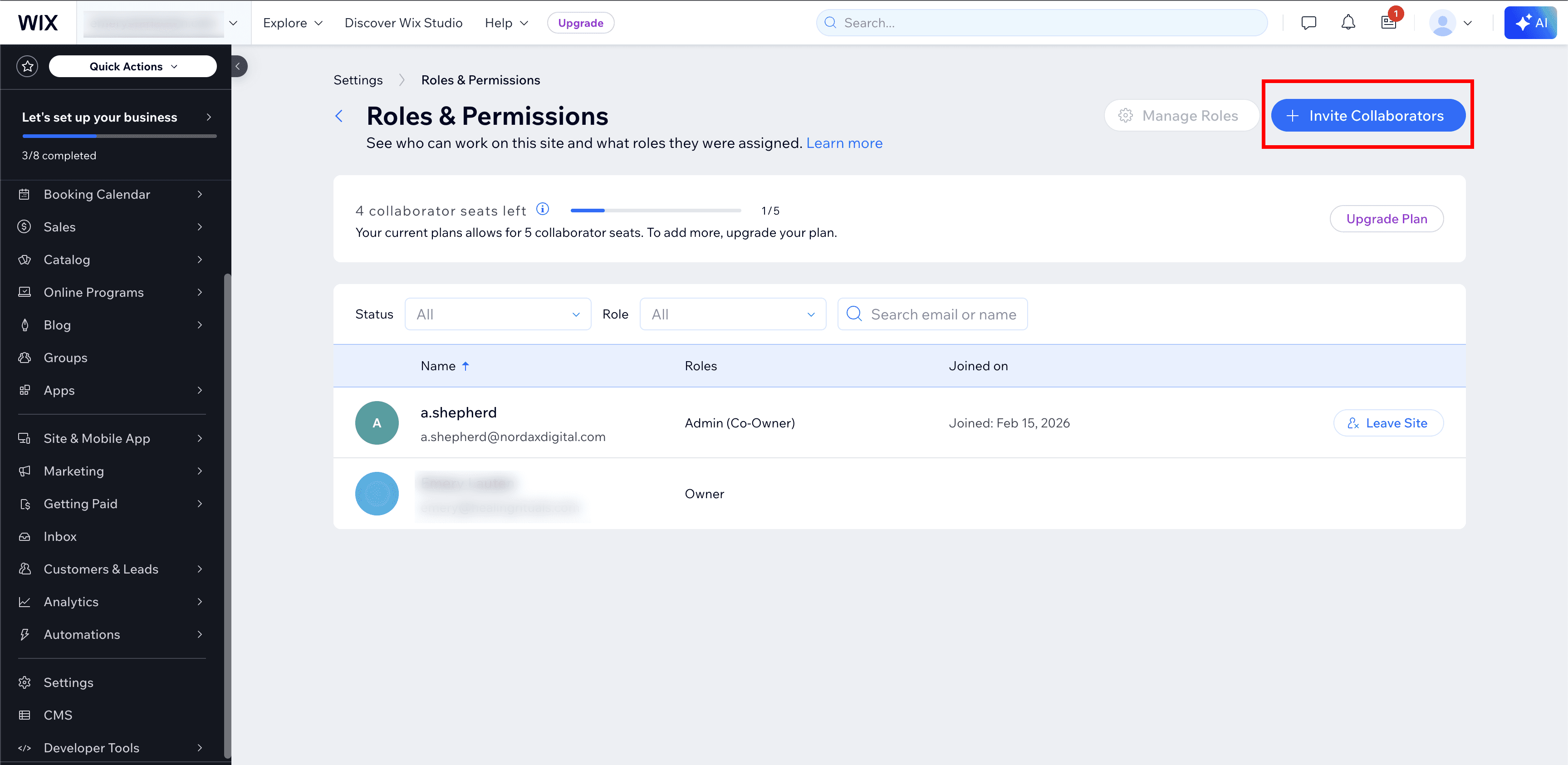
Step 5 – Enter Email and Select a Role
On the Invite Site Collaborators screen, enter the email address we provide, then select the appropriate role. We’ll let you know which role we need — in most cases it will be Admin (Co-Owner).
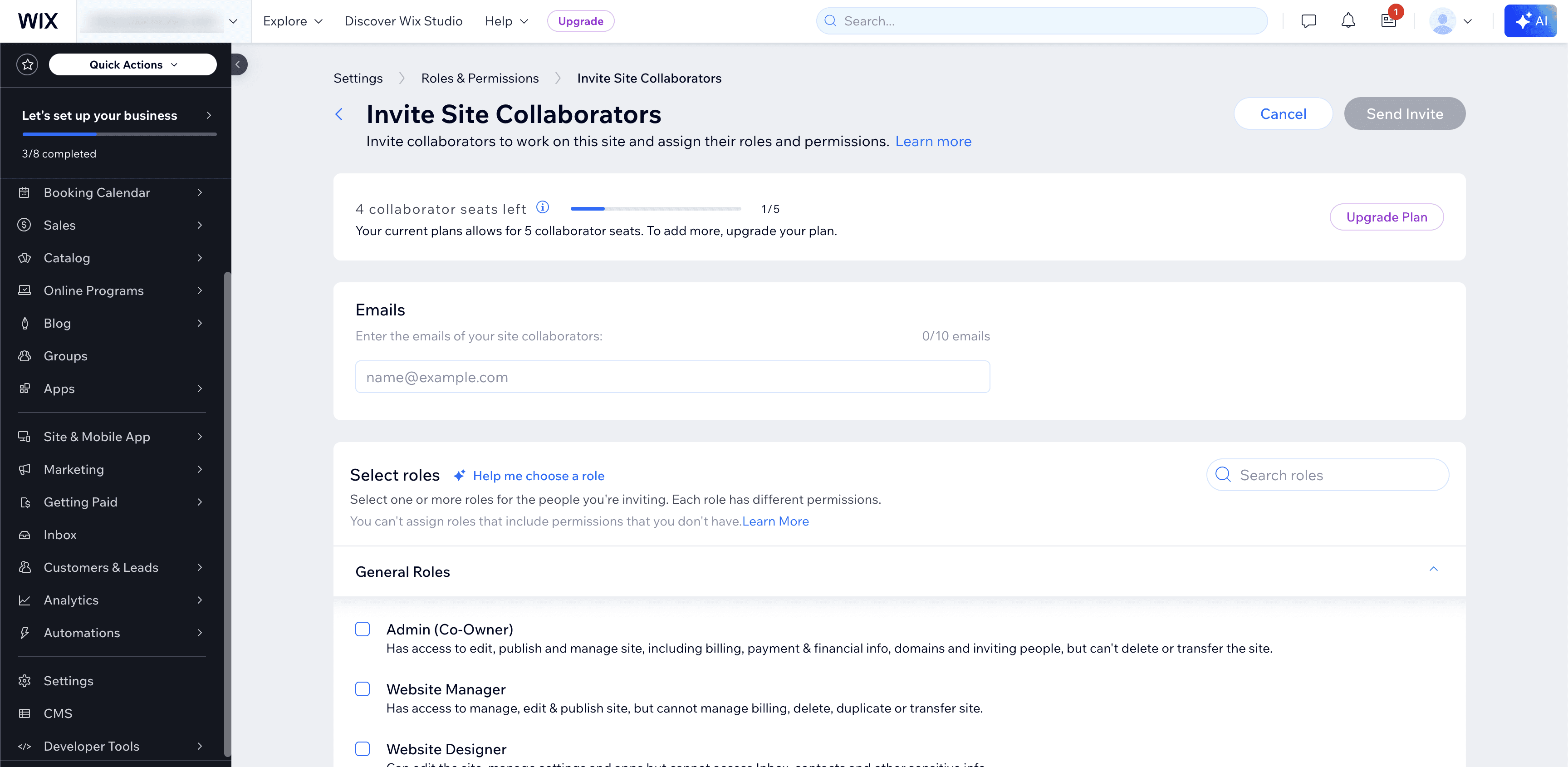
Wix collaborator seats are limited by your plan. You can see how many seats are available at the top of the invite screen.
Once you click Send Invite, we’ll receive an email and accept on our end. You can remove access at any time from this same page.
Need Help?
If you’re not sure which site to grant access to or run into any issues, contact us and we’ll walk you through it.